
Enterprise MCP
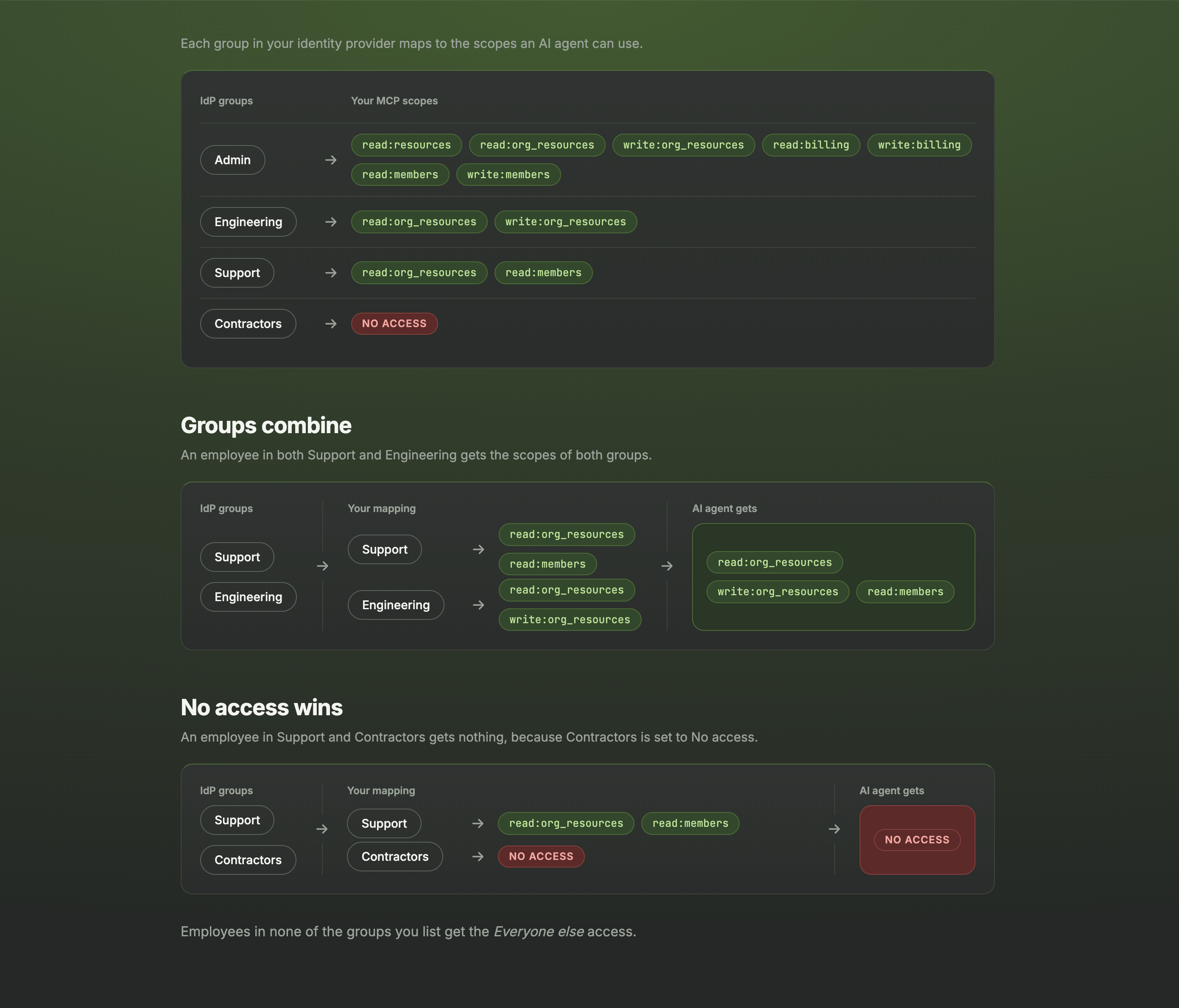
With PropelAuth's Enterprise MCP support, your customers can manage MCP server access and assign granular MCP scopes to their users directly through their Identity Provider (IdP) via Enterprise SSO or SCIM.
Since IdPs already use groups to control application access, PropelAuth leverages this familiar model by mapping IdP group memberships directly to MCP scopes. Admins simply assign users to groups in their IdP, and their available MCP scopes update automatically.
Enabling Enterprise MCP
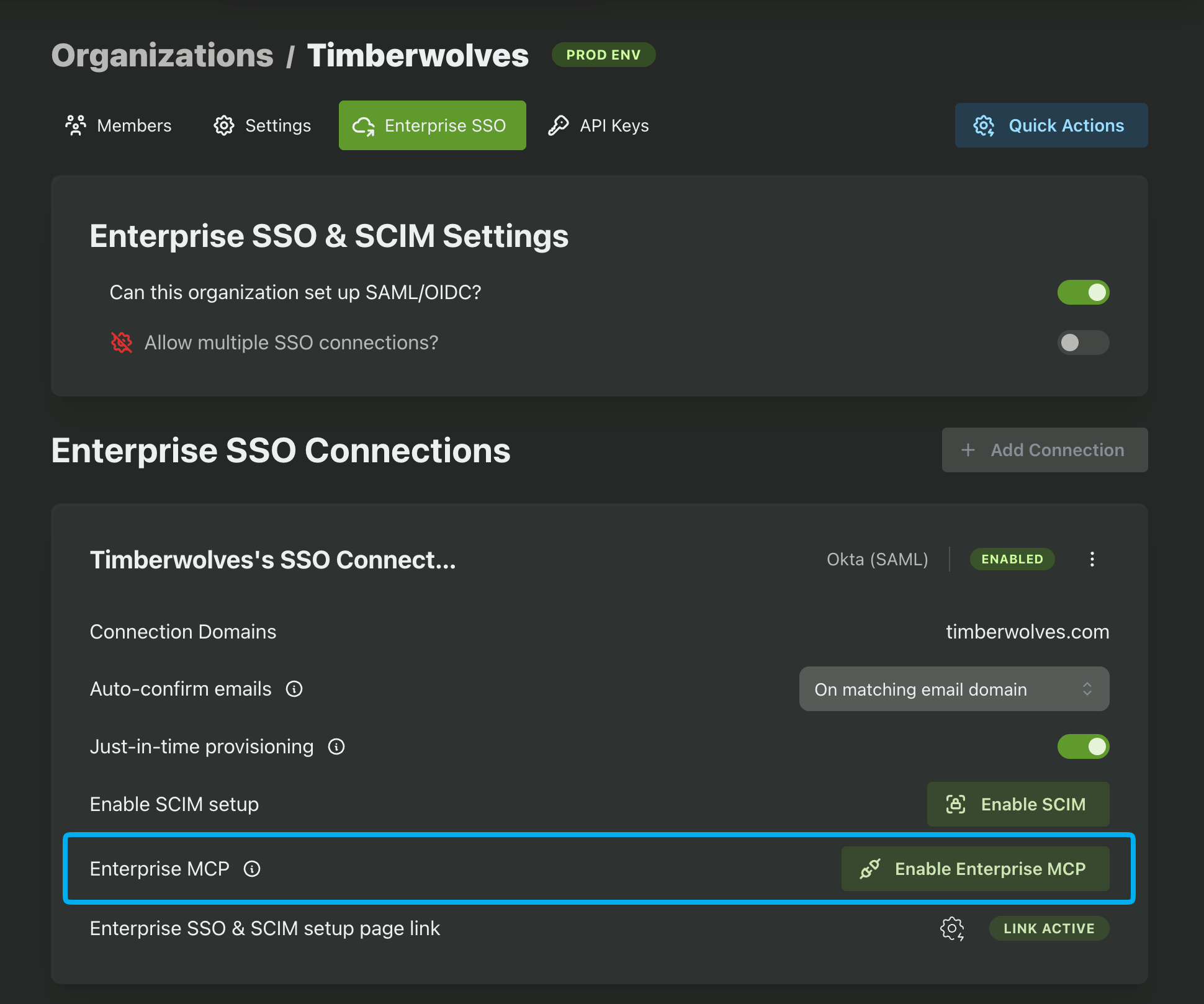
Enterprise MCP can be enabled for an organization by navigating to the org's Enterprise SSO tab and clicking Enable Enterprise MCP. Note that the org must have the "Can this organization set up SAML/OIDC" option enabled in order to turn on Enterprise MCP.
Your Customer Configures Enterprise MCP
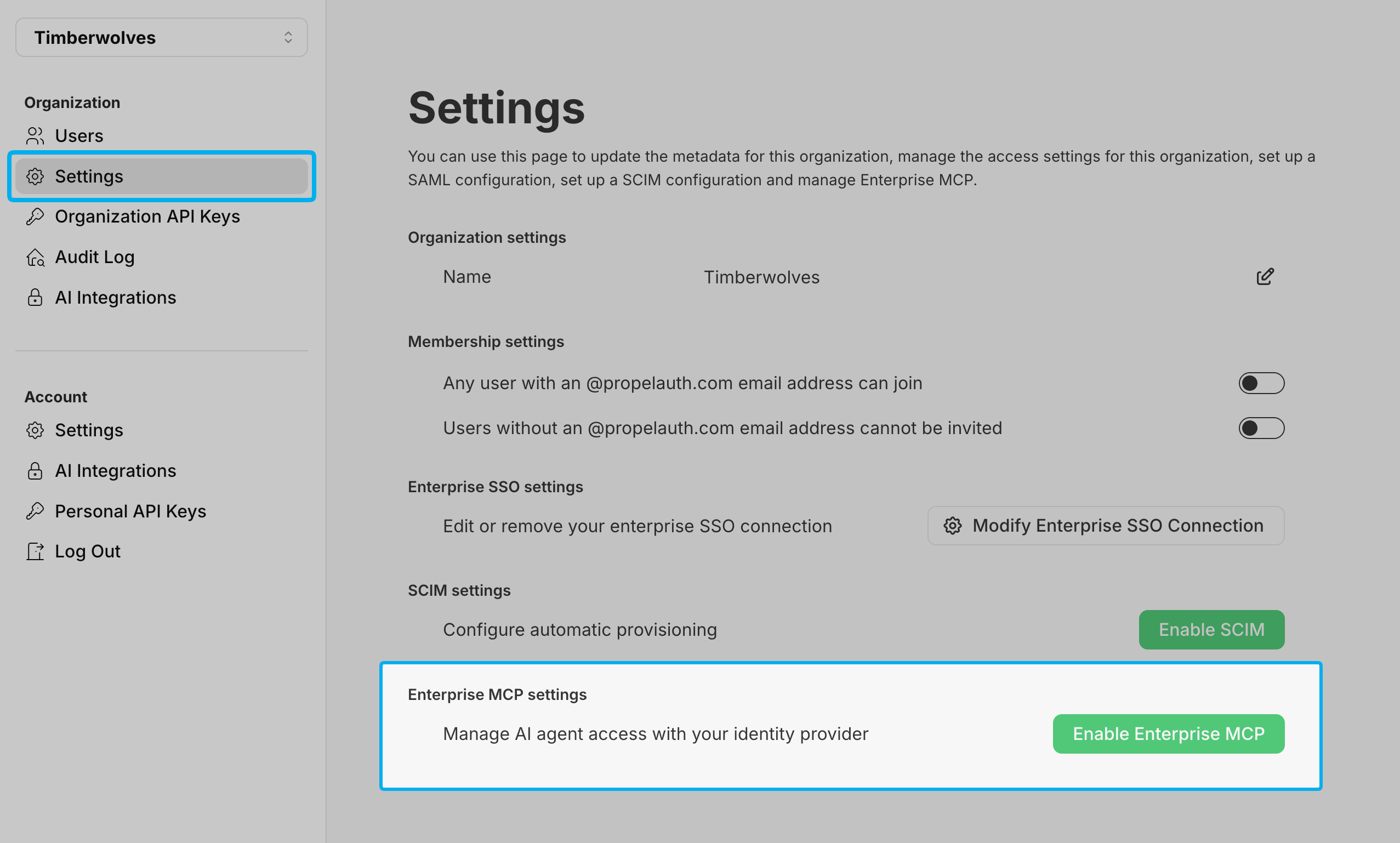
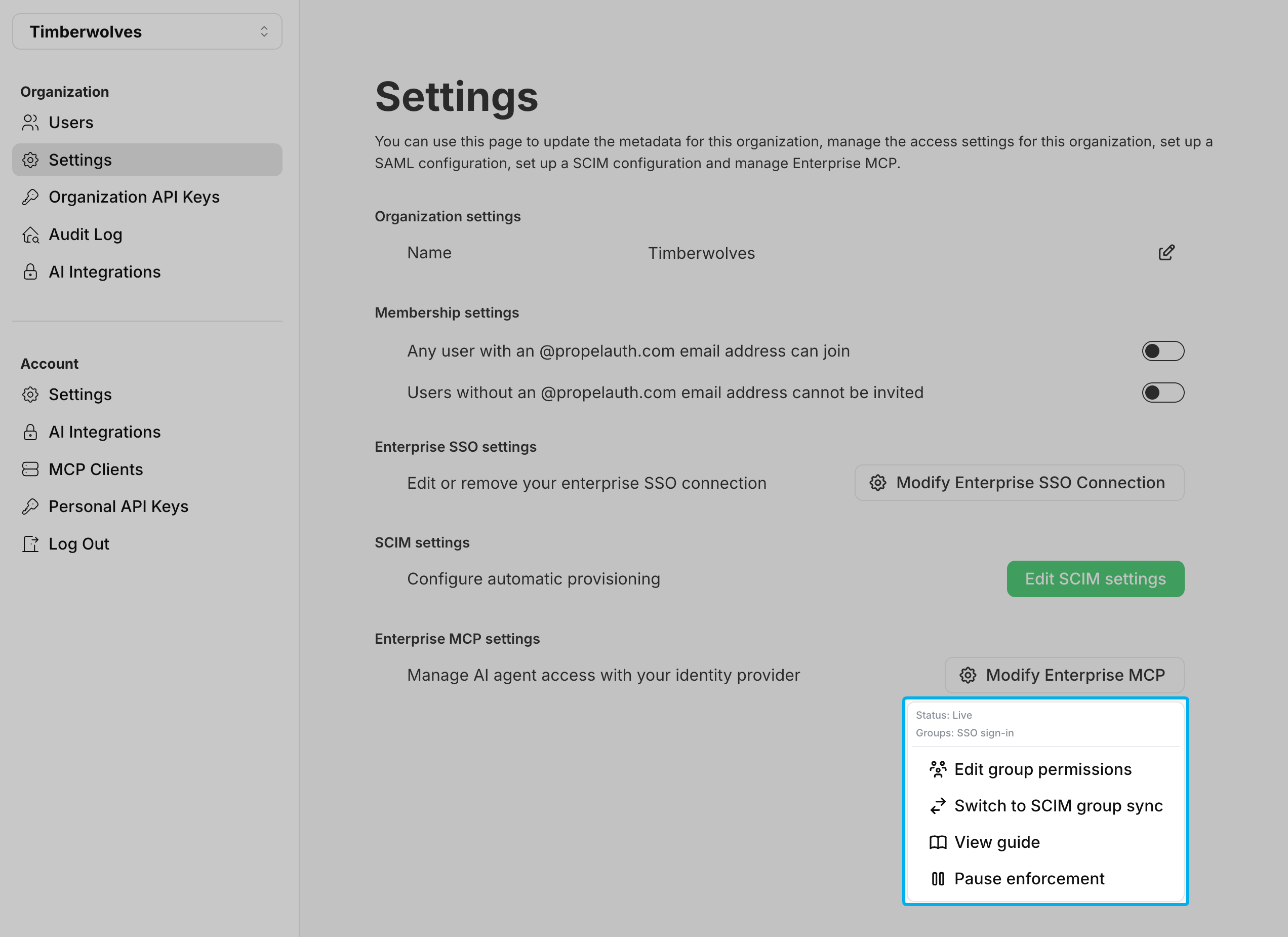
Enterprise MCP can be configured by your customer after they have successfully enabled Enterprise SSO or SCIM. They can do so by either the Organization Settings Page or the Enterprise SSO Setup Page Link. See here for more information.
Just like our SAML, OIDC, and SCIM guides, we provide step-by-step instructions to help your customer configure their IdP to use Enterprise MCP. Included in this guide is a configurable group to MCP scope mapping. During this process, your customer can enter the names of the groups from their IdP and map them to your specific MCP scopes.
Mapping Groups to MCP Scopes
Below is a screenshot from Entra of four groups that have been assigned to an example Enterprise SSO application. Your customer will likely have a similar view in their IdP of the groups that they have created and assigned to your application.
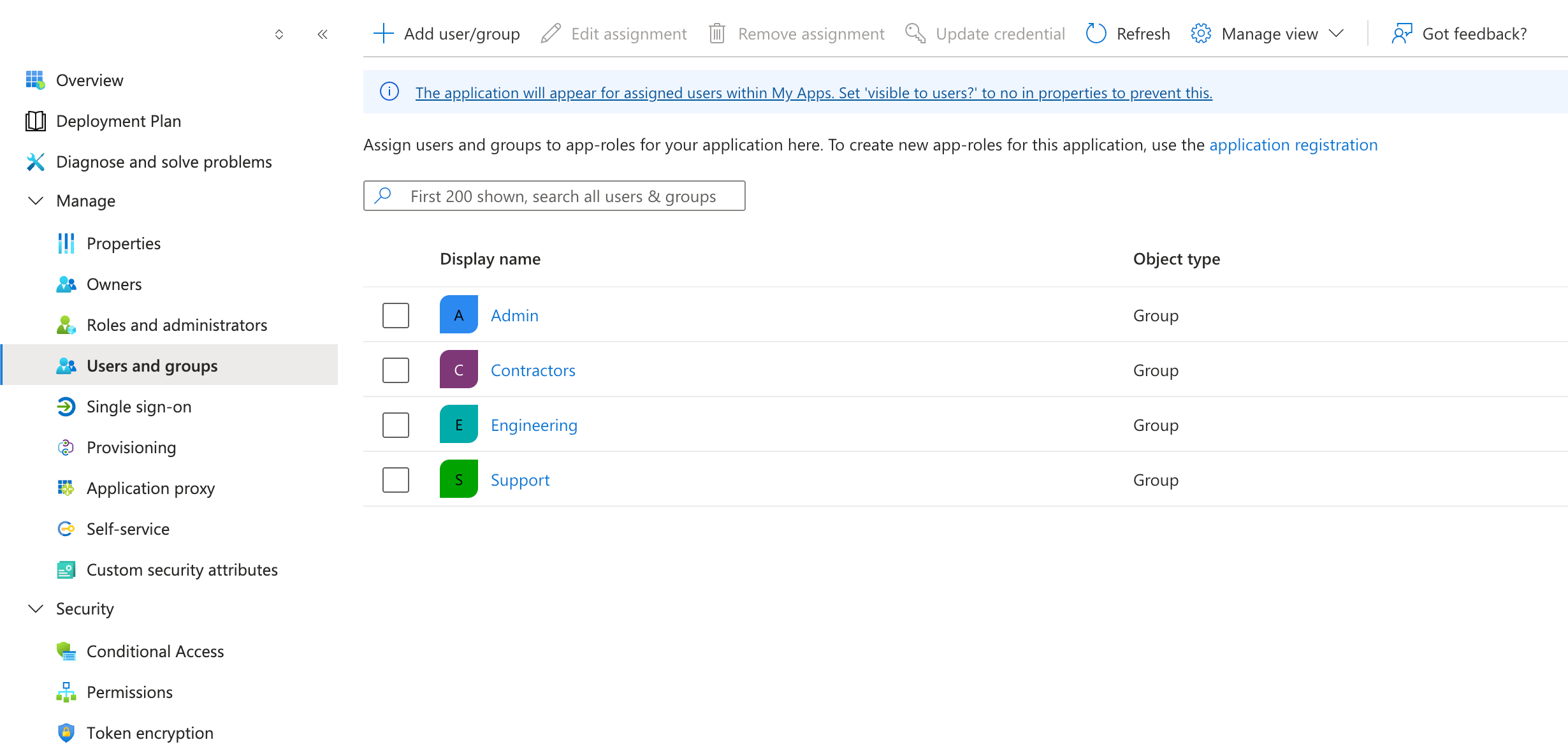
Your customer can map these groups to the appropriate MCP scopes. Below is an example of the group to MCP scope mapping configuration. In this example, the customer has created four groups - one for each group assigned to the application in their IdP. The names of these groups must match the names of the groups in the customer's IdP.
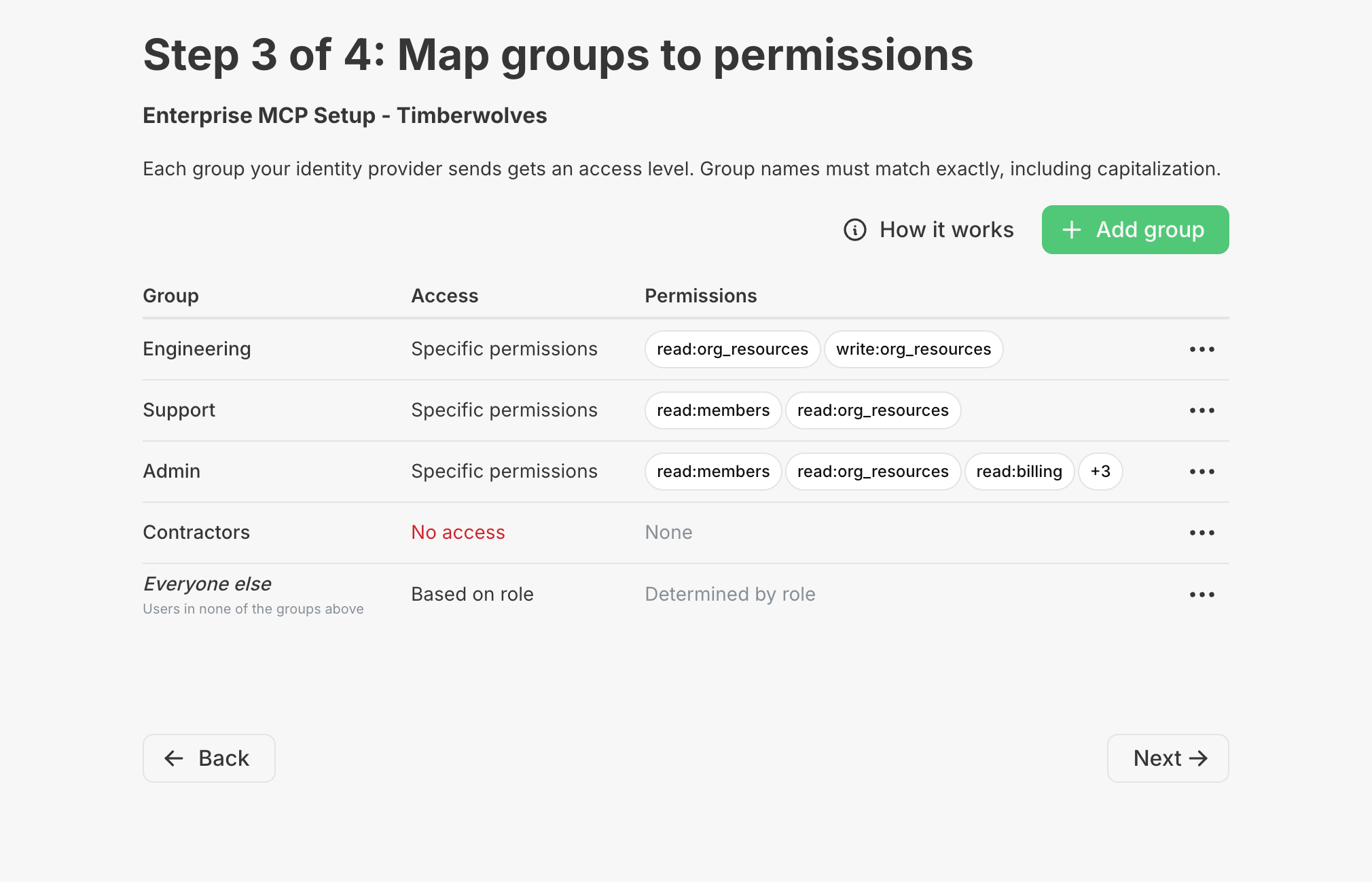
Above, Engineering and Support are mapped to the appropriate MCP scopes while Admin is mapped to every available scope. On the other hand, the Contractors group is mapped to "No access", meaning members of this group will not have access to any MCP resources.
Included in each mapping is a catch-all called "Everyone else". If the user does not belong to any of the listed groups, they will be assigned the access level defined by the "Everyone else" mapping. This (as well as any IdP group mappings) can be set to either:
- No access: The user will not have access to any MCP resources.
- Based on role: The user will be assigned scopes based on their role in your application.
- Specific Permissions: The user will be assigned specific permissions/scopes that are configured by the customer.
Groups Combine Scopes
If users belong to multiple groups, their scopes will be combined based on the group mappings. Using the example above, if a user belongs to both the Engineering and Support groups they will be assigned the read:org_resources, write:org_resources, and read:members scopes.
No Access Wins
If a user belongs to multiple groups and one of the groups is mapped to "No access", the user will not have access to any MCP resources, resulting in them not having permission to authenticate with your MCP server. Using the example above, if a user belongs to both the Engineering and Contractors groups they will not have access to any MCP resources.
Modifying and Pausing Enterprise MCP
Once your customer has enabled Enterprise MCP, they can modify the group mappings or pause it at any time from either the Organization Settings Page or the Enterprise SSO Setup Page Link.
Pausing enforcement means that MCP scopes will no longer be enforced by your customer's IdP and will fallback to the default, role-based scopes. Re-activating Enterprise MCP will restore the previously configured IdP Group Mappings.
Organizations that use both Enterprise SSO and SCIM can switch between mapping groups to MCP scopes via either method.
Enterprise SSO and SCIM Support
Enterprise MCP is supported for both Enterprise SSO and SCIM. If your customer has both enabled, they can choose which method to use for mapping groups to MCP scopes.
Since Enterprise SSO uses Just in Time Provisioning to create and update users, the group to MCP scope mapping will be applied at the time of user creation as well as each time the user logs in. For example, if a user is removed from a group in the IdP, they will not lose access to the associated MCP scopes until they logout and back in.
On the other hand, SCIM will update the user's MCP scopes in real-time as they are added or removed from groups in the IdP. This means that if a user is removed from a group in the IdP, they will immediately lose access to the associated MCP scopes and will be required to re-authenticate with your MCP server to regain access.