
Multiple SSO Connections per Organization
Traditionally, Enterprise SSO limits each organization to a single Identity Provider (IdP) connection. For example, one organization connected to one Okta tenant. However, enterprise customers sometimes require connecting multiple identity providers to a single organization, such as employees logging in from Okta while external contractors log in from Entra ID.
PropelAuth's Multiple SSO Connection support allows your customers to connect multiple identity providers to a single organization, including SAML, OIDC, and SCIM.
Enabling Multiple SSO Connections Globally
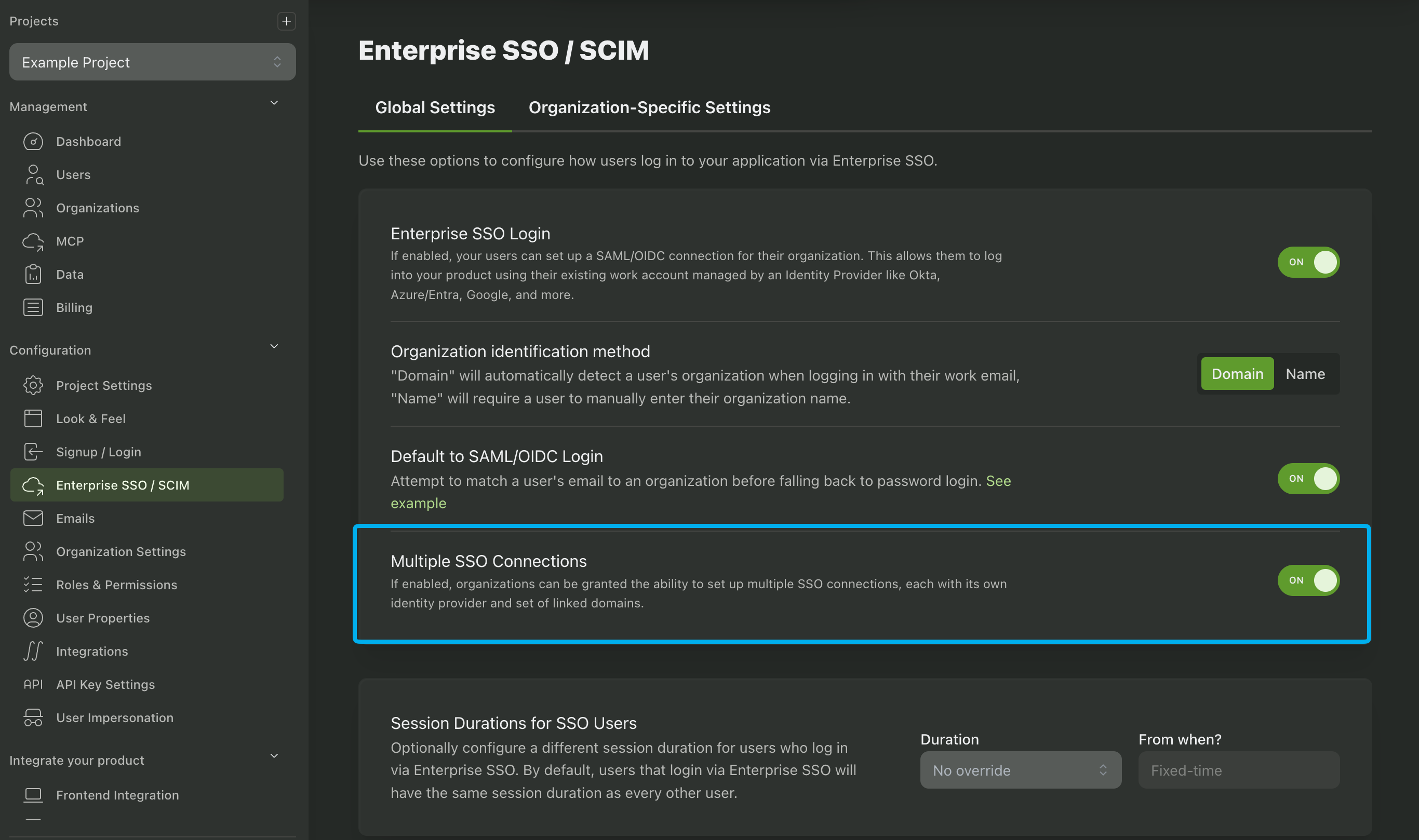
The first step to enabling Multiple SSO Connections per organization is to enable it globally for your project. Navigate to the Enterprise SSO/SCIM page in the PropelAuth Dashboard and toggle on Multiple SSO Connections.
Allow Organizations to Configure Multiple SSO Connections
Once enabled globally, you can grant specific organizations the ability to configure multiple SSO connections:
- In the PropelAuth Dashboard, navigate to Organizations.
- Select the target organization and click Enterprise SSO
- Toggle on Allow multiple SSO connections?.
You can then click the Add Connection button to configure a new SSO connection for the organization. The first step is to enter a name for the connection (this is internal and not shared with your customer) as well as domain(s) associated with the connection. See the domains section for more information.
Once configured, a new SSO setup link will be created that is specific to the connection. The setup link is tied specifically to this connection and only allows for configuration of this connection, not other connections associated with the organization.
Domains and Multiple SSO Connections
Assigning domains to an organization, as well as each individual SSO connection, is a crucial step in configuring multiple SSO connections.
When a user logs into an organization with multiple SSO connections, PropelAuth will automatically route the user to the appropriate connection based on their domain (and if required, their organization's name).
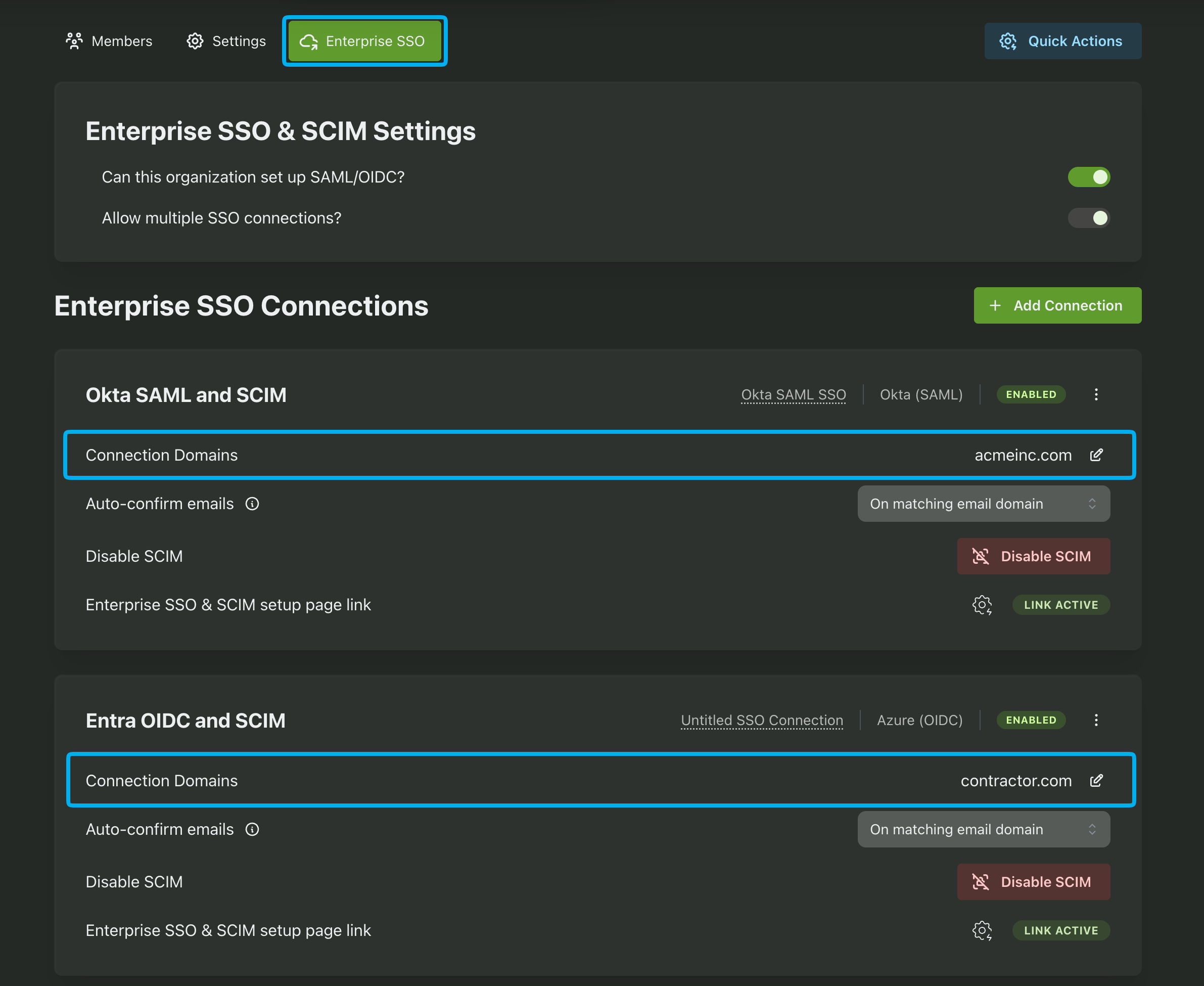
Above we have an organization with two SSO connections, one with a domain of acmeinc.com and the other with a domain of contractor.org. The acmeinc.com connection is configured to a SAML connection with Okta while the contractor.org connection is configured to an OIDC connection with Entra/Azure.
Using the image above, let's consider two scenarios based on your Organization Identification Method setting.
By domain: If you identify your organization by domain, PropelAuth will route users to the appropriate connection based on the domain of their provided email address. When a user enters an email of john@acmeinc.com, they will be routed to the Okta connection. When a user enters an email of john@contractor.org, they will be routed to the Entra/Azure connection.
By name: If you identify your organization by name, PropelAuth will route users to the appropriate connection based on the name of their organization. However, if the organization has multiple connections, PropelAuth will also prompt the user to enter their email to resolve the ambiguity. When a user enters an email of john@acmeinc.com during this additional step, they will be routed to the Okta connection. When a user enters an email of john@contractor.org, they will be routed to the Entra/Azure connection.
Updating Connections via the Hosted Pages
Once an SSO connection is configured, your users can update it via the hosted pages if they meet the following criteria:
- Their role includes the Enterprise SSO permission.
- Their email's domain matches the domain associated with the SSO connection. If multiple SSO connections are configured for an organization they can only update the connection that matches their email domain.
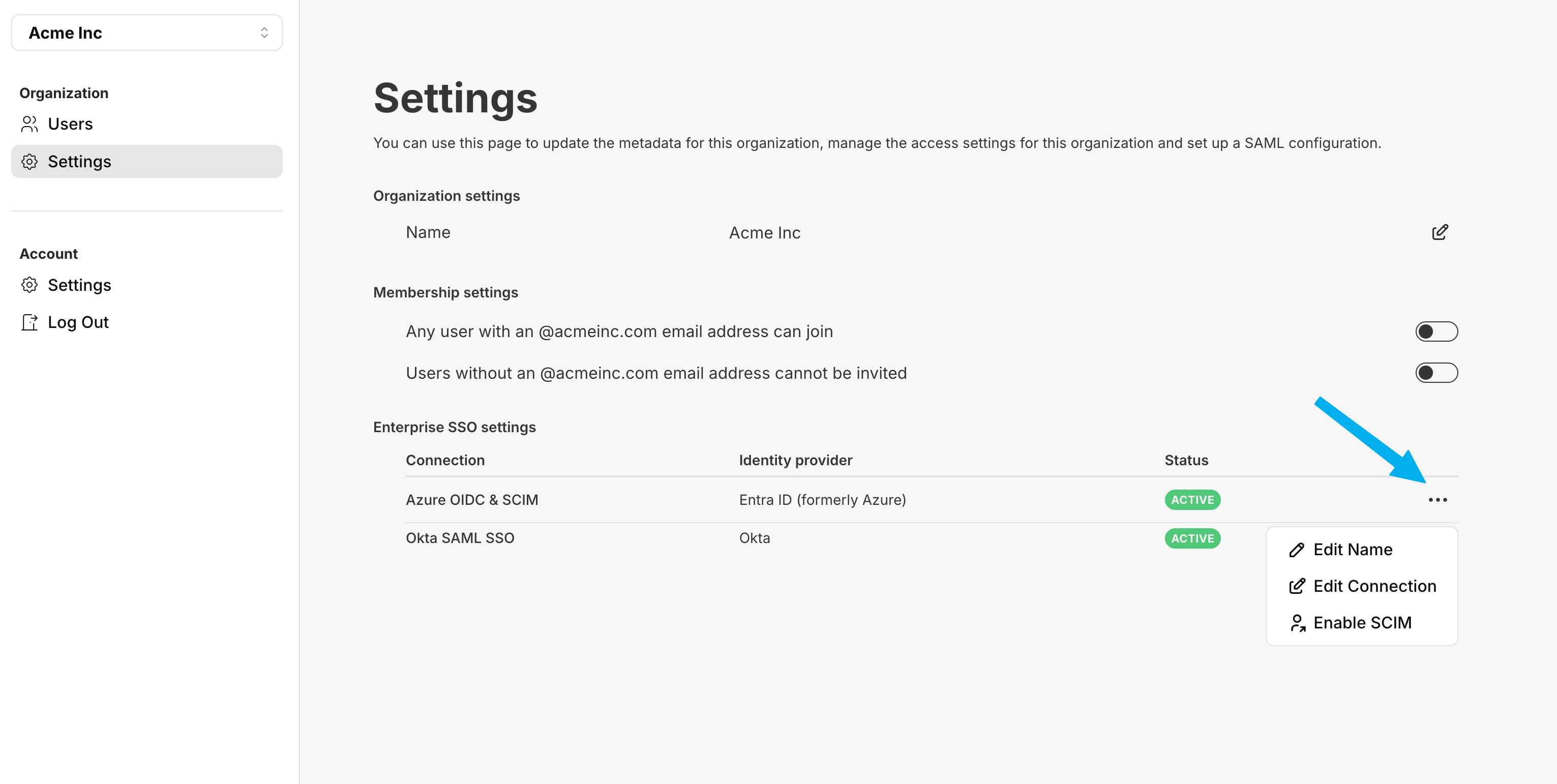
If a user meets the above criteria, they can update their SSO configuration (such as updating their SAML certificate), update their connection nickname, and if enabled configure SCIM for the connection.
Display Names and Nicknames
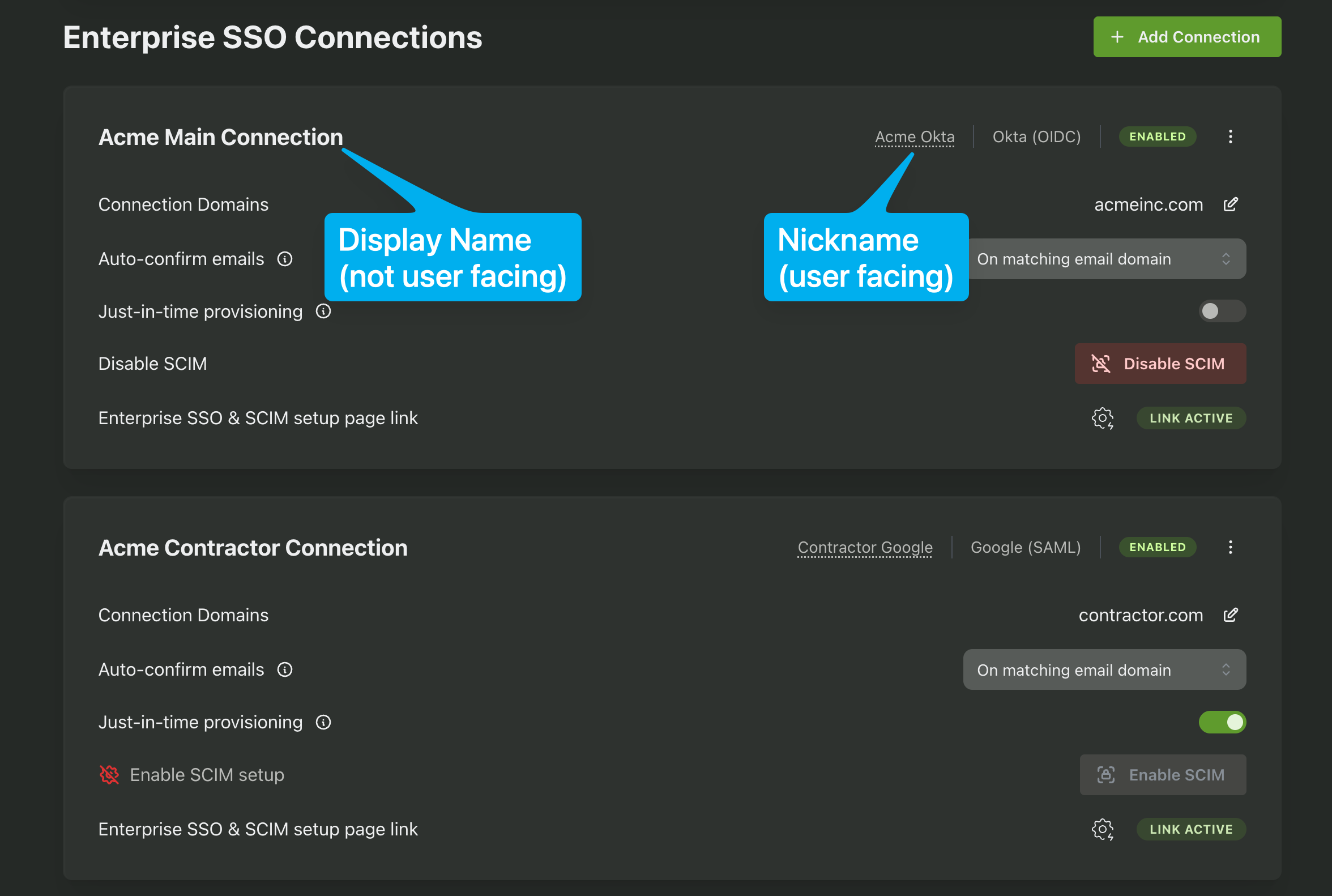
When the multiple SSO connections setting is enabled for an organization each connection is assigned two names. These names are to help you and your customers differentiate between different SSO connections.
- Display Name: A non-user facing name for the connection that is displayed in the PropelAuth Dashboard.
- Nickname: A user facing name for the connection that is configured by your customer in the hosted pages.
Enterprise SSO Backend API Changes
Not Available
Some Backend APIs will not be available when an organization has Multiple SSO Connections enabled. This includes:
- Create SAML Connection Link
- Fetch SAML SP Metadata
- Set SAML IdP Metadata
- Set OIDC IdP Metadata
- Enable SAML Connection
- Delete SAML Connection
Updated APIs
Two APIs will require an additional connection_id parameter when an organization has Multiple SSO Connections enabled. You can find the connection_id for each connection in the Fetch Org SSO Connections API documented below.
curl --location --request GET '{AUTH_URL}/api/backend/v1/scim/{ORG_ID}/groups
  ?connection_id={CONNECTION_ID}' \
--header 'Authorization: Bearer {API_KEY}'
curl --location --request GET '{AUTH_URL}/api/backend/v1/scim/{ORG_ID}/groups/{GROUP_ID}
  ?connection_id={CONNECTION_ID}' \
--header 'Authorization: Bearer {API_KEY}'
New APIs
- Fetch Org SSO Connections
curl --location --request GET '{AUTH_URL}/api/backend/v1/sso_connections/{ORG_ID}' \
--header 'Authorization: Bearer {API_KEY}'

# Response
{
    "connections": [
        {
            "connection_id": "879b9d5e-95fc-4...",
            "sso_method": "Oidc",
            "idp_type": "Okta",
            "display_name": "Okta OIDC SSO",
            "is_test_mode": false,
            "test_completed": true,
            "is_primary": true,
            "email_domains": [
                "acmeinc.com"
            ],
            "can_setup_scim": true,
            "is_scim_configured": true
        },
        ...
    ]
}
Redirecting Users Changes
If you're currently redirecting users directly to their Enterprise SSO provider, you may need to update your redirect logic to support multiple SSO connections.
For example, if you're currently using org_name or org_id as your URL parameter for redirecting users to their SSO provider, and the provided org has multiple SSO connections, this will now return an ambiguous_results error. To address this, you can add the domain or email parameter to your redirect URL to specify which connection to use.
{AUTH_URL}/api/fe/v3/login/saml?org_id=1e01ac72-42c1-484a-8115-94341b036194&domain=acmeinc.com