Audit Logs
See a detailed history of all actions taken by your users and organizations. Whether a user logged in, a user was added to an org, or an org completed SAML setup, our Audit Logs will record when the event happened as well as a description of the event.
The logs also record who made a change. For example, changing the name of a user from the PropelAuth dashboard would result in the event type User Metadata Changed with the description:
user@acmeinc.com had their account properties changed to
{ firstName: "Buddy" } from { firstName: "Ant" } by admin@propelauth.com
The Audit Logs are split into two categories - User and Organization. Both can be found by navigating to the Data page in your PropelAuth dashboard.
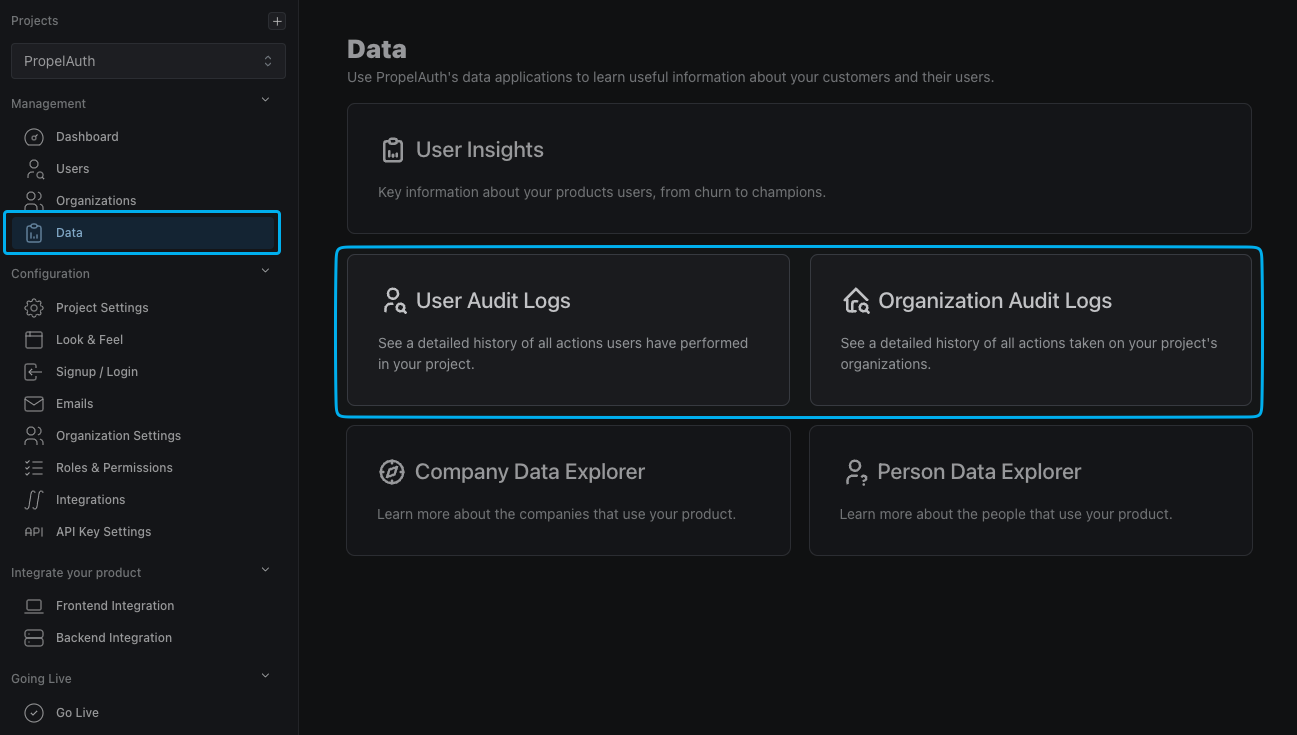
User Audit Logs
The user audit logs record events taken by users as well as on users. Here's a full list of each user event we record:
| User Created | User Deleted | User Disabled | Email Confirmed |
| User Enabled | User Locked | User Unlocked | Email Change Requested |
| User MFA Locked | User Logged Out | User Impersonation | Email Changed |
| Password Changed | User Metadata Changed | Added To Org | Removed From Org |
| Removed Other User From Org | Role Changed Within Org | Forgot Password | Invited User To Org |
| Rejected Org Invitation | User Login Attempt | User Login Still Needs MFA | User Login Invalid MFA Attempt |
| User Invalid MFA Attempt | Enabled MFA | Disabled MFA | Add Permission |
| Remove Permission | External Account Merged | User Export Initiated | Created Personal API Key |
| Deleted Personal API Key | Created Org | Updated Org Name | Enabled Org Domain Auto-Join |
| Disabled Org Domain Auto-Join | Enabled Org Domain Restrict | Disabled Org Domain Restrict | Revoked Org Invitation |
| Changed Users Role Within Org | Setup SAML | Went Live With SAML | Removed SAML |
| Username Changed | Initiated SMS MFA Enrollment | Completed SMS MFA Enrollment | Removed SMS MFA Phone Number |
| Initiated SMS MFA Verification | Completed SMS MFA Verification | Used Step-Up MFA Grant |
Org Audit Logs
The org audit logs record events taken by org as well as on orgs. Here's a full list of each org event we record:
| Org Created | Org Updated | Org Deleted | Org Name Updated |
| Org Metadata Updated | Org Max Users Updated | Org Auto-Logout Seconds Updated | Org Custom Role Mapping Set |
| Org Require 2FA By Updated | Org SAML Setup | Org SAML Updated | Org SAML Went Live |
| Org SAML Removed | Org Can Setup SAML Enabled | Org Can Setup SAML Disabled | Org SSO Test Initiated |
| Org SSO Test Completed | Org Domain Updated | Org Domain Updated | Org Extra Domains Updated |
| Org Domain Auto-Join Enabled | Org Domain Auto-Join Disabled | Org Domain Restrict Enabled | Org Domain Restrict Disabled |
| Org SCIM Key Created | Org SCIM Key Revoked | Org Can Setup SCIM Enabled | Org Can Setup SCIM Disabled |
| Org API Key Created | Org API Key Updated | Org API Key Deleted | Org Invitation Sent |
| Org Invitation Revoked | Org User Added | Org User Role Changed | Org User Removed |
Audit Log Filtering
We offer multiple filters to help narrow down your search of audit logs. These include:
- The user or org that the event was performed on
- The type of event (see above)
- Date
- Who or what caused the event:
- API Key
- Employee
- User
- Impersonation
- SCIM
Audit log history goes back 30 days on our free plan, 60 on the Growth plan, and 90 on Growth Plus. See our pricing page for more information. If you need access to earlier data, contact support@propelauth.com.
Customer Facing Audit Logs
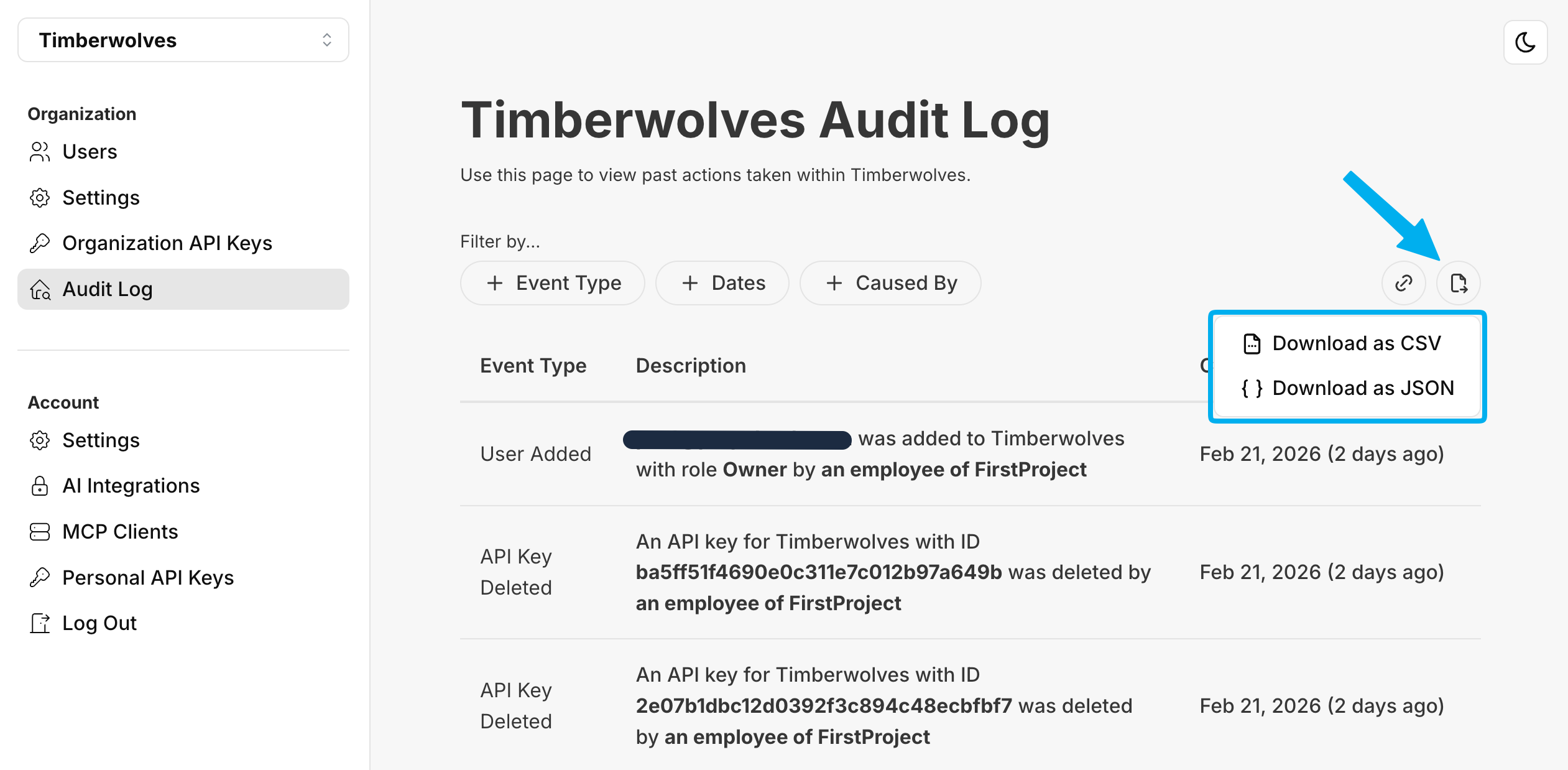
Allow your users to view logs associated with their organization and organization members, such as when a user was invited, when a user's role is updated, and more. Enable customer facing audit logs by navigating to the Organization Settings page of the PropelAuth Dashboard and enabling the Organizations can view audit logs setting.
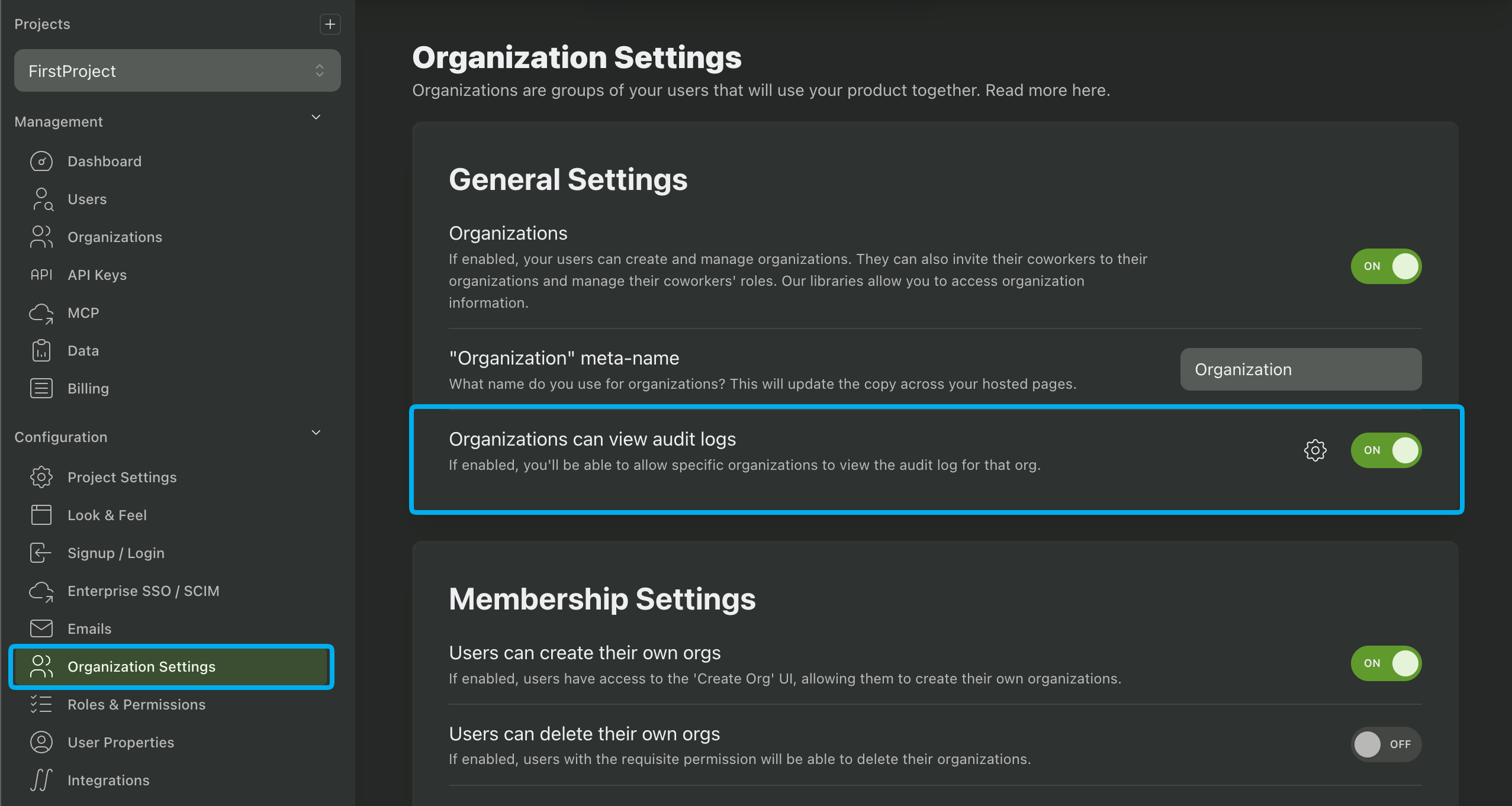
You can configure additional settings by clicking on the cog icon:
- Organizations Can View Member Audit Log: If enabled, member audit logs will be included in the customer facing audit logs. These logs include a selection of User Audit Logs that are associated with the organization's members, such as login and MFA events. See Member Audit Logs for more information.
- All Organizations Can View Audit Log: If enabled, all organizations will be able to view audit logs. If disabled, you'll have to enable audit logs for an organization by navigating to the org's page in PropelAuth, clicking on Settings, and enabling the Users with the 'View Audit Log' permission can view the organization audit log setting.
- Audit Log Includes Impersonation: If enabled, organization audit logs will include actions taken while a user was being impersonated.
- Audit Log Includes API Keys: If enabled, organization audit logs will include actions taken by the backend API.
- Audit Log Includes Employees: If enabled, organization audit logs will include actions taken by you and your teammates in the PropelAuth Dashboard.
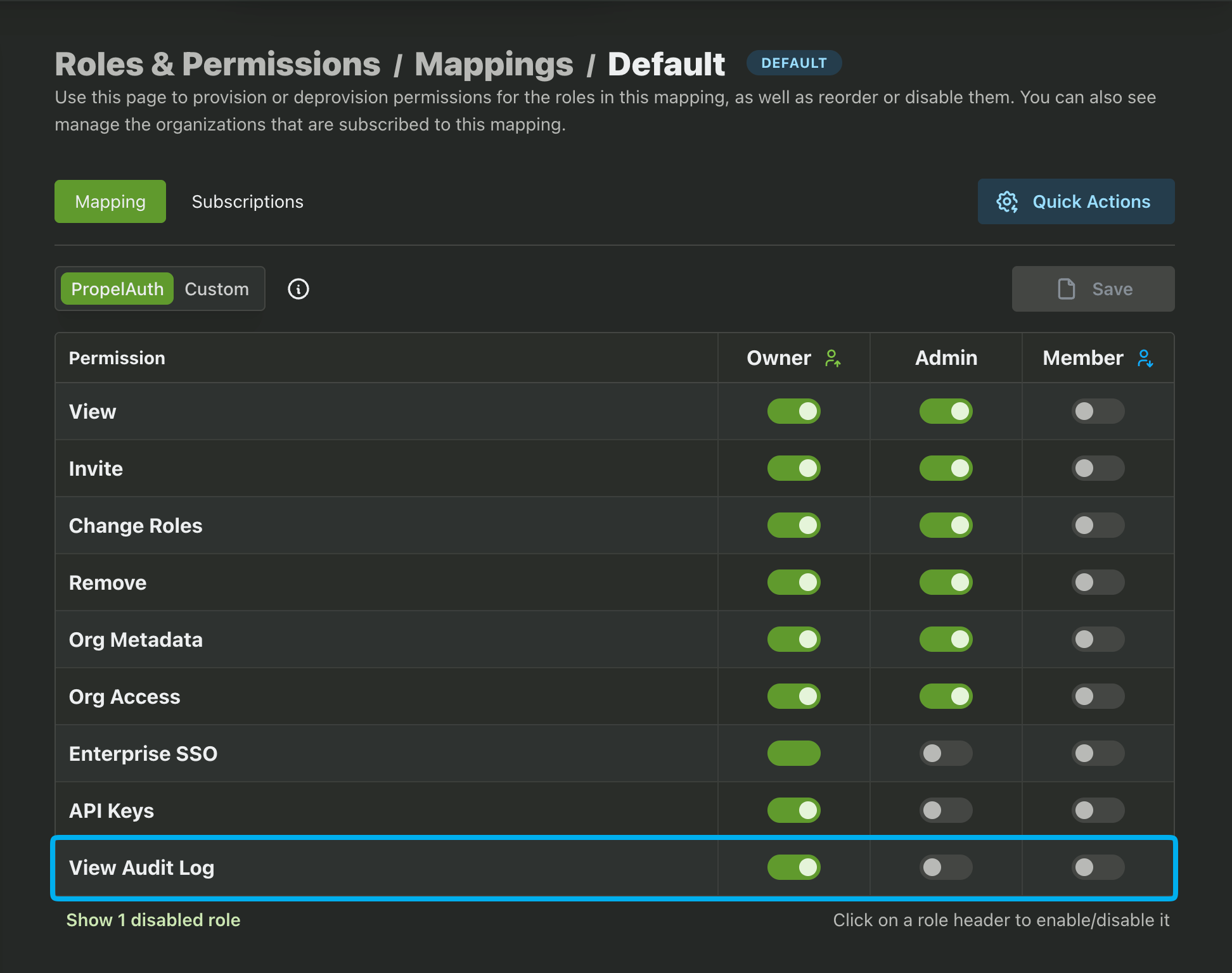
Once enabled, you'll have to configure which of your roles have permission to view customer facing audit logs. Begin by navigating to the Roles & Permissions page of the PropelAuth Dashboard followed by Mappings. Enable the View Audit Log permission for the necessary roles.
Users with the correct role and permission will then be able to view the customer facing audit logs in the organization hosted pages.
Member Audit Logs
By default, customer facing audit logs include organization specific logs such as Enterprise SSO configuration changes, MFA restrictions, inviting users to the org, and other org membership updates.
However, your customers may require additional audit logs that are specific to the members of their organization, such as login events, password changes, and email confirmations. These log types are called Member Audit Logs.
Customers can view activity logs for both current and former organization members. However, these logs are strictly limited to actions taken while the user was an active member of the organization. Any subsequent activity is not included.
To enable Member Audit Logs, enable the Organizations Can View Member Audit Log setting found by clicking the cog icon next to the Organizations can view audit logs setting.
Exporting Audit Logs
Audit logs can be exported to Amazon S3 or Datadog for further analysis.
Customer Facing Audit Logs can be exported by your customers in either JSON or CSV format in the organization hosted pages.